
Mastering the Selection: How to Choose the Best Rugged Tablet for Your Mission-Critical Needs
you’re knee-deep in mud on a construction site. Rain pours down. Your team needs quick access to blueprints. A regular tablet slips from your hand and shatters. That’s the reality for workers in tough spots like field service or military ops. Standard devices just can’t handle the beating. A rugged tablet steps up. It goes beyond basic toughness. Think seals against dust and water. Shock-proof builds for drops from waist height. These tools keep you connected when the job gets rough.
This guide walks you through picking the right one. We’ll break it down step by step. Match the tablet to your exact needs. That way, your choice lasts and boosts your work. No more wasted cash on gear that quits early.
Section 1: Understanding Ruggedization Standards and Durability Ratings
Rugged tablets shine in bad weather and rough handling. But not all claim the same toughness. You need to know the standards that prove real strength. This sets the foundation for any solid pick.
Decoding MIL-STD-810H Certification
MIL-STD-810H comes from the military. It tests gear against shocks, vibrations, hot and cold temps, and high humidity. A tablet with this cert drops from four feet onto concrete without breaking. It runs fine in freezing winds or desert heat. For you, that means less downtime on site.
Look for details in the cert. Some pass transit drops for shipping. Others handle operational drops during use. Check the report. It shows what the tablet truly survives.
Pick one with full MIL-STD-810H. It gives peace of mind in high-risk jobs.
IP Ratings: Ingress Protection Explained (Dust and Water Resistance)
IP ratings tell you about dust and water shields. The numbers break down like this: first digit for solids, second for liquids. IP65 blocks dust and jets of water. IP67 handles full dust block and a quick dunk in water.
In a dusty warehouse, IP54 might do. But for boat work, go IP68. It survives longer submersion. Think of a scanner in a rainy yard. IP65 keeps it dry. Your tablet stays on task.
Match the rating to your world. Wet fields need higher numbers. Dry shops can settle for less.
Screen Toughness: Glass Technology and Sunlight Readability
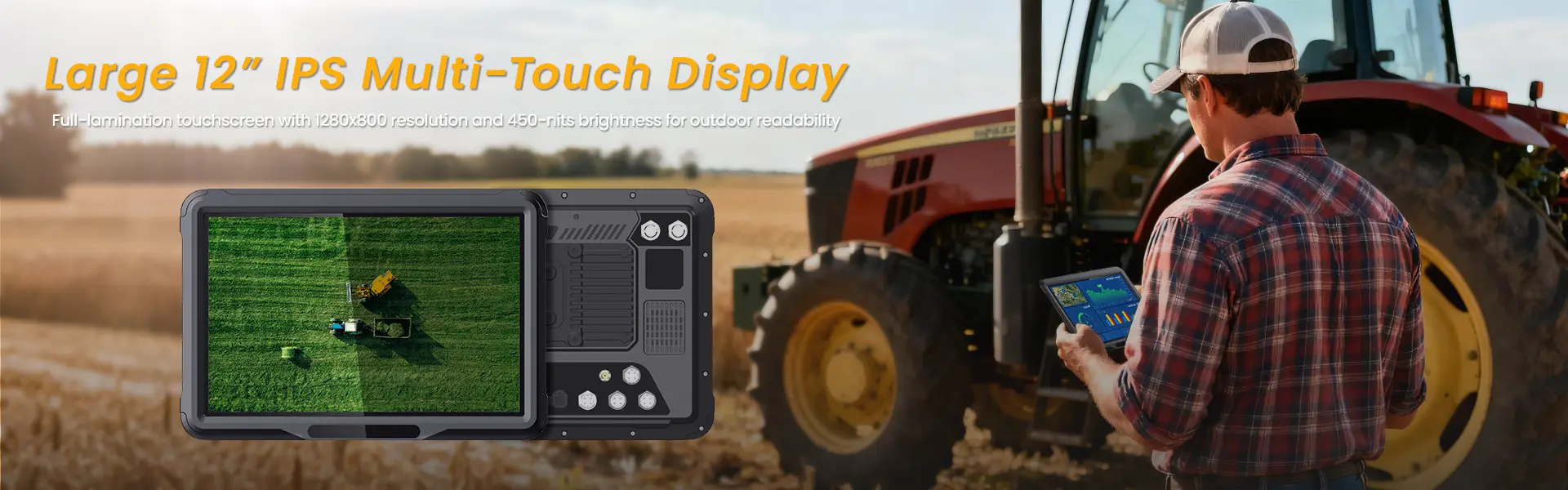
Screens take the most abuse. Gorilla Glass Victus or similar strengthened glass resists scratches and cracks. It bounces back from keys in your pocket or tools on the bench.
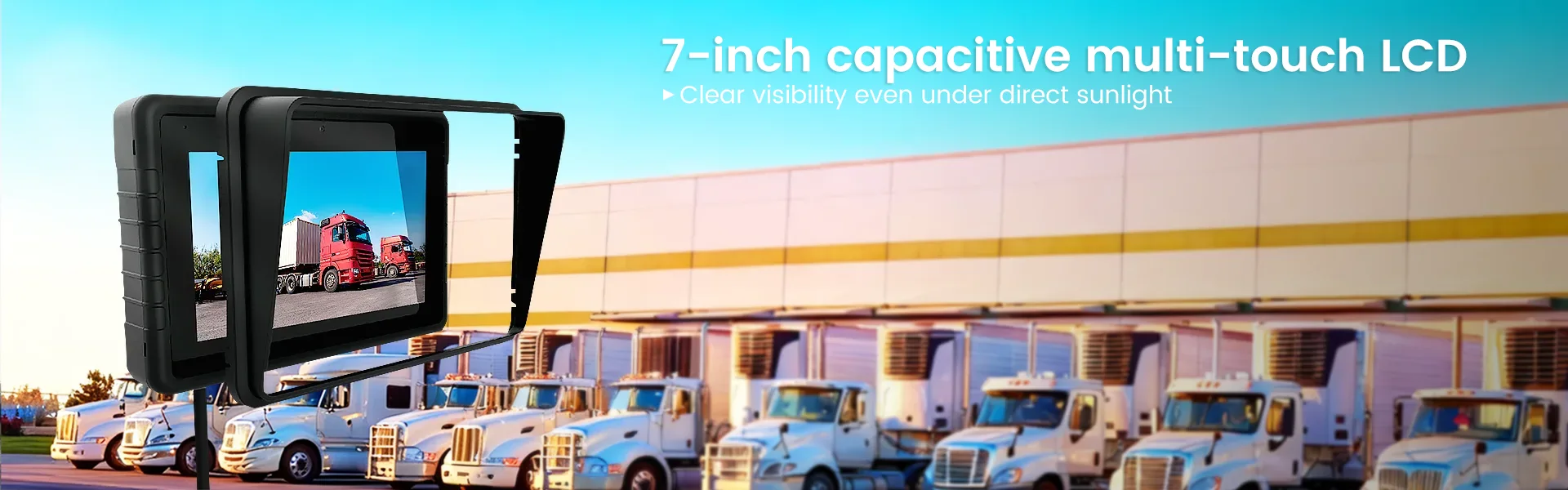
Brightness matters too. Aim for 1000 nits or more. That cuts glare under bright sun. You read maps or forms without squinting.
Test it outdoors if you can. A tough screen means clear views all day. No more wiping smudges in the wind.
Section 2: Performance Specifications for Field Applications
Durability is key, but speed counts too. Your rugged tablet must run apps smooth in the field. Let’s look at what powers it up.
Processor Power vs. Battery Life Trade-Offs
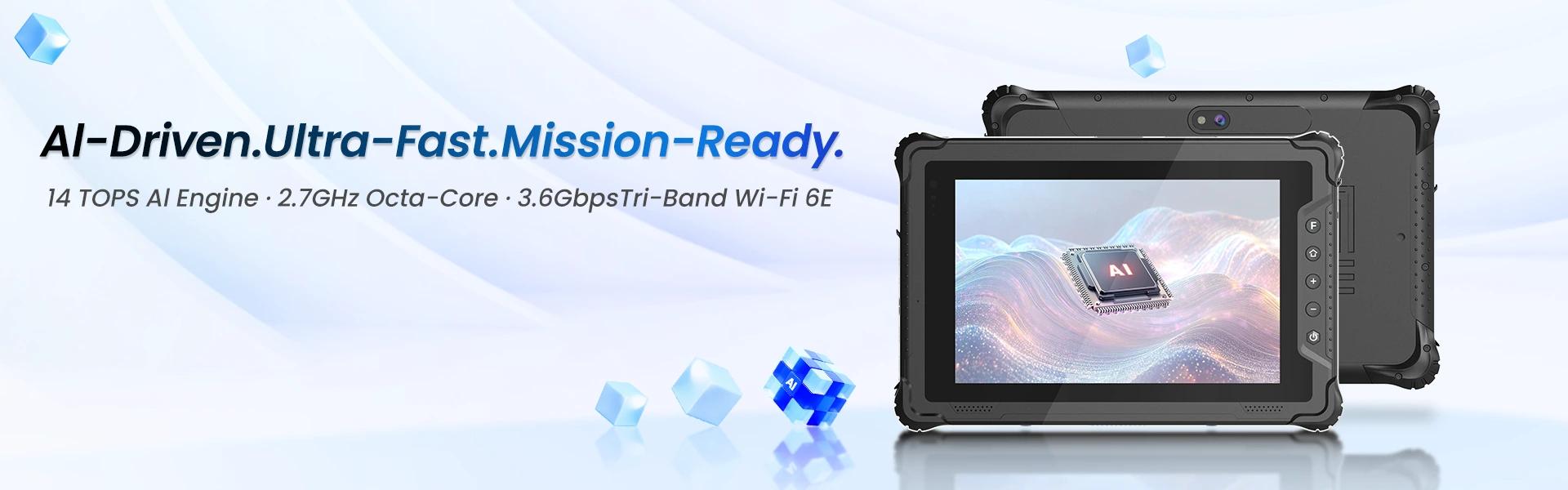
Processors like Snapdragon chips handle basic tasks fast. Intel options tackle heavy loads, like editing designs on site. But more power drains the battery quicker.
If you log data far from plugs, pick big battery capacity in watt-hours. Say 5000mAh or higher. It lasts a full shift.
Balance them. For simple scans, save power. For video calls, boost the CPU. Your work flow stays steady.
Operating System Compatibility and Future-Proofing
Windows 11 Pro works with office tools and custom software. Android suits mobile apps in logistics. Linux fits secure setups in defense.
Check update promises. Good vendors support for five years or more. That keeps security tight and features fresh.
Think ahead. Will your apps run in 2030? Pick an OS with long legs.
Memory and Storage Requirements (RAM and SSD/eMMC)
At least 8GB RAM keeps apps from lagging. Multitask with maps and emails? Go 16GB.
Storage options include SSD for speed or eMMC for cost. SSD boots quick and loads files fast. eMMC saves money for light use.
- For field reports: 64GB eMMC works.
- For photos and videos: 256GB SSD shines.
Match to your data needs. No more waiting in the rain.
Section 3: Connectivity Essentials for Remote Operations
Out in the field, you can’t count on office Wi-Fi. Strong links keep teams in sync. Focus on built-in options that reach far.
Cellular Connectivity: 4G LTE vs. 5G Integration
4G LTE covers basics like email and GPS. It’s reliable in most spots. 5G adds speed for live video or big file shares.
For global teams, check band support. North America? Europe? A wide range avoids dead zones.
Weigh the cost. 5G pays off if you stream inspections. Otherwise, 4G saves bucks.
Specialized Wireless: GPS, NFC, and RFID Capabilities
Standard GPS gets you close. But for precise surveys, seek RTK-ready units. They pin locations within centimeters.
NFC taps for quick payments or access. RFID scans inventory from afar. Great for warehouses.
- Asset tracking: Built-in RFID cuts time.
- Navigation: High-accuracy GPS guides trucks right.
These features tie your tablet to daily tasks.
Port Selection and Secure Docking Solutions
USB-C charges and transfers data fast. Ethernet plugs into networks for steady links. Some have proprietary ports for extras.
Docking stations mount in vehicles. They charge while you drive. Secure locks prevent theft.
Pick ports that fit your setup. A good dock means always-ready gear.
Section 4: Ergonomics, Input Methods, and Ecosystem Integration
A tablet feels good or it doesn’t. Ease of use matters in long hours. Think about how it fits your hand and workflow.
Glove Compatibility and Active/Passive Stylus Use
Touch screens must sense through gloves. Thick work ones, thin latex— it should respond. Settings adjust sensitivity.
Stylus options help draw notes or sign forms. Passive ones are cheap. Active deliver pressure sense for details.
In rain or cold, these keep input smooth. No frustration mid-job.
Weight, Size, and Mounting Options
Smaller 8-inch models slip in pockets. 10-inch balances portability and screen space. 12-inch suits desk-like work.
Under two pounds cuts arm strain. Add straps or harnesses for hands-free carry.
Mounts for forklifts or belts. They free you up. Test the fit for your shifts.
Battery Hot-Swapping and Extended Life Options
Hot-swap batteries let you switch without shutdown. Vital for round-the-clock ops.
Single packs last eight hours. Dual setups double that. External chargers add more.
In remote spots, this means no breaks. Your tablet stays alive.
Section 5: Total Cost of Ownership (TCO) and Vendor Support
Upfront price tempts, but look deeper. Long-term costs add up. Support keeps it running smooth.
Warranty Structures and Accidental Damage Protection (ADP)
Basic warranties cover defects for one year. ADP adds drops and spills, no deductibles.
In rough work, ADP saves thousands. Repairs cost less out of pocket.
Read the fine print. Some plans include loaners while yours fixes.
Lifecycle Management and Software Support
Vendors promise patches for years. Regulated fields like health need this for compliance.
Five to seven years of updates build trust. It fights old bugs and new threats.
Plan for end-of-life. Trade-ins ease upgrades.
Comparing Major Rugged Tablet Manufacturers
Panasonic Toughbook leads in defense. Built like tanks for combat zones.
Zebra focuses on logistics. Their scanners integrate seamless with inventory systems.
Getac serves utilities. Models handle extreme cold for line workers.
Market data shows Panasonic at 25% share in military. Zebra tops warehouses at 30%. Pick by your niche.
Conclusion: Finalizing Your Rugged Tablet Procurement Checklist
Choosing the best rugged tablet boils down to fit. Use this checklist to guide your buy.
- Assess your environment: Check IP and MIL-STD levels first.
- List performance needs: Balance CPU, battery, and RAM for tasks.
- Map connectivity: Confirm GPS precision and cellular bands.
- Test ergonomics: Try sizes and inputs in real use.
- Crunch TCO: Factor warranties and support spans.
Key takeaway: Start with the tough stuff like ratings. It trumps speed every time.
Next, nail down links like accurate GPS. They keep you connected.
Finally, eye the full cost. Multi-year deals ensure your tool stays sharp.
Ready to upgrade? Research models today. Find one that matches your grind. Your team will thank you.
相关推荐内容
Latest Content
- The Complete Guide to Choosing the Best Tablet for Truck Drivers in 2026
- Fleet Management Tablet: The Complete Guide to Rugged In-Cab Tablets for Commercial Vehicles
- The 2026 Definitive Guide to Rugged Vehicle-Mounted Tablets: Selection, Integration, and Deployment
- Bedside Infotainment Terminal: The Complete Guide to Smart Patient Engagement Systems in Modern Healthcare
- 10 Inches Sunlight Readable Tablet: 2026 Procurement & Technical Framework
Hot product
- WMT6UQ: 6-Inch 4G Android 12 Wireless Carplay Navigator Motorcycle PND
- WT10RX: 10.1 inch rugged tablet,10.1″ sunlight-readable display,10.1" ip67 rugged tablet
- WT10MX: 10.1 inch rugged tablet 12,000 mAh,10.1″ IPS display Rugged IP65 design
- WT08Q9Y: 8 inch 10000mAh long battery rugged tablet,1000-nit rugged tablet,
- WT08M8Y: 8 inch Android 14,700-nits rugged tablet