
Mastering Mobile Data Terminal Configuration for Seamless Fleet Management Integration
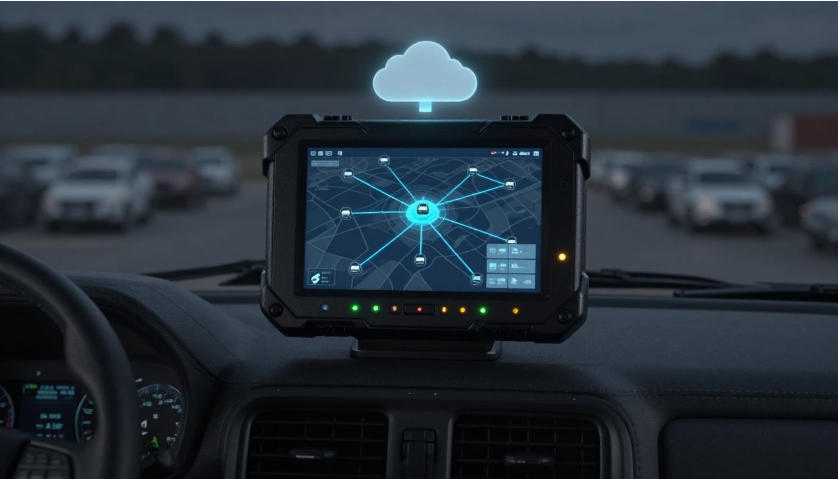
In the world of fleet management, every second counts. Imagine your trucks zipping across highways, but without clear data flow, you’re blind to delays, fuel waste, or driver fatigue. Mobile data terminals, or MDTs, act as the eyes and ears in your vehicles. They handle telematics, track locations in real time, and ensure you meet rules like hours-of-service limits. Proper setup turns raw hardware into a smart tool that boosts efficiency and cuts errors. Yet, getting this right can feel tricky at first. You might face mismatched software or spotty signals that halt operations. This guide walks you through each step to link your MDT smoothly with fleet management software, or FMS. You’ll end up with a system that saves time and money.
Pre-Configuration Essentials: Hardware and System Readiness
Selecting the Right MDT Hardware for Your Ecosystem
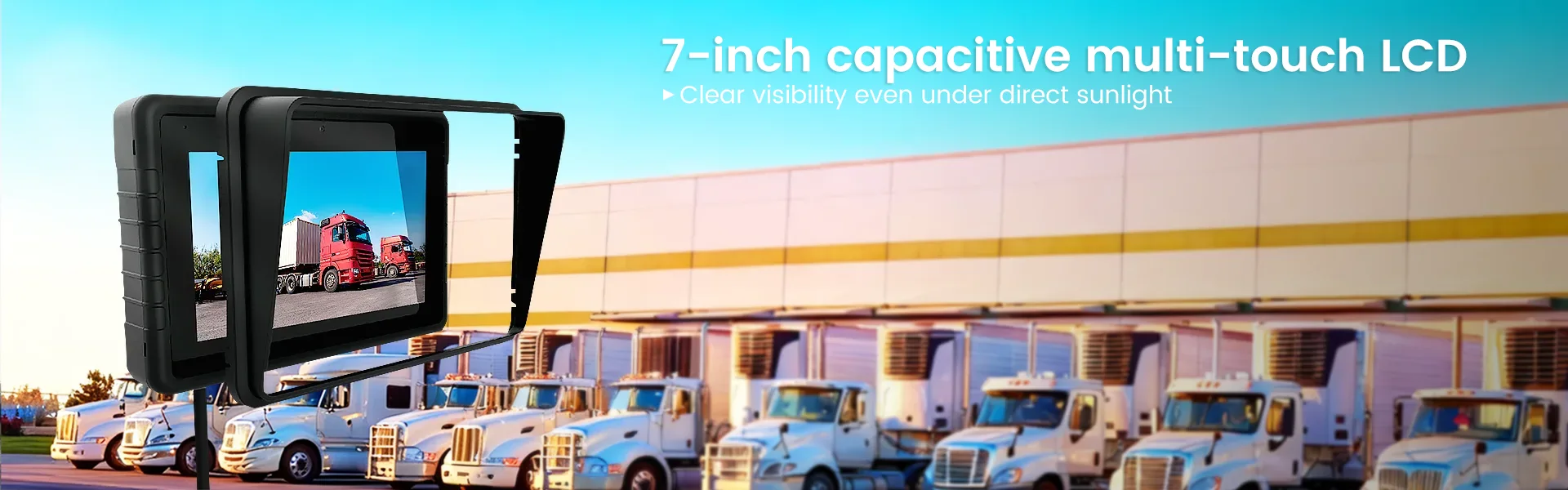
Pick MDT hardware that fits your fleet’s needs. Look at the operating system first—Android works well for apps, while Windows CE suits older setups. Screen size matters too; a 7-inch display helps drivers see maps without strain. Durability is key—aim for IP67 ratings to handle dust and water in tough conditions. You also need ports like CAN bus to pull engine data directly from the vehicle.
Don’t forget connectivity. Most fleets require 4G or 5G for quick updates. Match this to your FMS demands, such as sending location pings every minute.
Here’s a quick checklist to guide your choice:
- Does the OS support your FMS apps?
- Is the battery life at least 8 hours for long routes?
- Are there enough ports for GPS antennas and OBD-II readers?
- Check ruggedness for your climate—cold winters or hot summers.
This step prevents headaches later. A poor match could mean constant reboots or lost signals.
Verifying Telematics Platform Compatibility and API Access
Before you connect anything, confirm your MDT talks the same language as your FMS. Check supported protocols like MQTT for light data or TCP/IP for steady streams. Your fleet software might demand specific ones, so review the docs. Get API keys from your provider early—these unlock secure data exchange.
One common snag hits when old MDT firmware clashes with a fresh FMS update. Take a logistics firm last year; their devices stopped sending alerts because the protocol shifted to HTTPS. They fixed it by patching the firmware and testing links. Always run a compatibility scan tool from the manufacturer. This ensures smooth telematics integration from day one.
Secure those API tokens too. Store them safely, not in plain text. Without this check, your data might leak or fail to sync.
Initial Power-Up, Firmware Updates, and Security Baselines
Unbox your MDT and power it on right away. Connect to a stable Wi-Fi or USB for the first boot. Hunt for firmware updates on the vendor’s site—install the latest stable version to fix bugs and add features.
Security comes next. Change the default admin password immediately; hackers love those easy targets. Turn on device encryption to protect driver logs and location data. Set up a firewall to block unwanted access.
Think of this like locking your house before leaving keys out. One fleet overlooked updates and faced a data breach, costing thousands in fixes. Do these basics, and your MDT stays reliable.
Establishing Core Connectivity: Network and GPS Setup
Configuring Cellular Data and Network Parameters
Set up cellular data to keep your MDT online during drives. Enter the APN details from your carrier—it’s like the address for your mobile internet. For Verizon, it might be “vzwinternet”; AT&T uses “phone”. Test the connection in a quiet spot to avoid signal drops.
Plan for backups. When the vehicle docks at base, switch to Wi-Fi for faster uploads. On the road, rely on cellular but set alerts for weak spots.
Tip: Measure data speeds in your main routes. If it’s under 1 Mbps, consider a stronger antenna. This keeps fleet management integration tight, with no blackouts.
One driver shared how poor APN setup caused hours of lost tracking—simple fix, big impact.
Optimizing GNSS/GPS Signal Acquisition and Accuracy
Get GPS working sharp from the start. Place the antenna high on the dash for clear sky views. Check for a solid satellite lock; hot starts grab signals in seconds if powered recently, while cold starts take longer in garages.
Tweak settings for your needs. Set location reports every 30 seconds when moving over 5 mph, but drop to every 5 minutes when parked. This saves battery and data without losing key info.
Experts suggest aiming for 95% uptime on location reports. Use tools to log signal strength—fix any drift by recalibrating. Accurate GPS means better route plans and fewer speeding tickets for your team.
Fleet Management Software Synchronization and Mapping
Initial Device Enrollment and Unique Identification
Start by enrolling your MDT in the FMS. Find the device’s IMEI or serial number in settings—it’s like its fingerprint. Log into your FMS portal and add it there.
Link it to the right vehicle and driver. Assign VIN numbers or driver IDs to avoid mix-ups. If a truck swaps drivers, the system knows who logs hours.
This step builds trust in your data. Without it, reports get jumbled, leading to wrong decisions.
Data Payload Formatting and Transmission Settings
Decide what data your MDT sends. Capture engine RPM, fuel levels, or driver scans—whatever your FMS needs. Format it as JSON for easy reading; XML works for some older systems.
Set transmission rules: send full payloads every hour, but alerts instantly for issues like low oil. Compress data to cut costs—tools like gzip shrink files by 70%.
Tip: Run a test batch with logs on. Check if fields map right, like GPS coords to FMS maps. Fix mismatches now, or face data gaps later.
A shipping company tested this and caught a format error, saving days of cleanup.
Geofencing Configuration and Alert Thresholds on the Device
Load geofence zones into the MDT for local checks. Enter depot coordinates so it knows when a truck enters or leaves. For offline spots, this processes events without server pings.
Set alerts for breaches—like speeding over 65 mph or idling past 10 minutes. Push these to the driver screen and FMS dashboard.
Tune thresholds to your rules. Short-haul fleets might alert on 2-minute idles; long-haul sets higher. This boosts safety and cuts fuel waste by 15%, per industry stats.
Driver Interface and Application Deployment
Installing and Configuring Fleet-Specific Applications
Load apps onto the MDT securely. Use sideloading for ELD software or dispatch tools—download from trusted sources. Avoid app stores to prevent junk installs.
Set permissions tight: drivers see maps but can’t tweak networks. Admins get full access via remote login.
One fleet added navigation apps and saw route times drop by 20%. Keep updates current to patch holes.
Driver Authentication Methods and HOS Compliance
Make login simple yet safe. Use PINs for quick entry or RFID for hands-free. Tie this to FMS profiles so hours track to the right person.
For HOS, sync logs automatically. The MDT stamps drive time, breaks, and rests—meets DOT rules without paper.
Drivers hate fussy logins, so test flows. A smooth setup means fewer errors and happy teams.
Customizing User Interface (UI) for Operational Efficiency
Tailor the screen for drivers. Put dispatch messages on the home page and shortcuts for logs. Bright icons help in sunlight.
Adjust layouts by role—truckers get fuel trackers upfront. This cuts button presses and errors.
Watch a shift: if info hides, rework it. Good UI turns the MDT into a helpful copilot, not a distraction.
Post-Configuration Validation and Ongoing Maintenance
Comprehensive End-to-End Testing Protocols
Test everything thoroughly. Cycle the ignition on and off to check wake-ups. Send sample data over a full route to spot drops.
Verify alerts: trigger a fake geofence cross and see if it pings the office. Check two-way chats—dispatch a message and confirm receipt.
Big firms run a 48-hour trial, monitoring every ping. They catch issues like signal fades before rollout. This builds confidence in your setup.
Remote Management Capabilities Verification
Confirm remote access works. Use the FMS to peek at diagnostics or push app tweaks without pulling the device.
Test OTA updates: send a small patch and track success. Aim for 100% installs across the fleet.
If a unit fails, log why—maybe poor signal. This keeps your mobile data terminal configuration fresh without downtime.
Establishing Routine Diagnostic Checks and Data Auditing
Schedule weekly log reviews. Look for connection fails or GPS jumps—fix antennas if needed.
Audit data monthly: match FMS fuel reports to odometer reads. Spot trends like high idle times.
Set alerts for odd patterns, like sudden battery drains. Regular checks keep your fleet running smooth, spotting problems early.
Conclusion: Ensuring a Reliable Mobile Data Backbone
You’ve now got the tools to turn a basic MDT into a powerhouse for your fleet. From hardware picks to final tests, each step weaves it into your management system. This setup sharpens safety, nails compliance, and optimizes routes for real gains.
Key takeaways:
- Update firmware and secure basics first for a strong start.
- Match data formats and test mappings to avoid sync fails.
- Run full end-to-end checks, including a burn-in period.
- Customize driver views and audit data often for peak performance.
Ready to integrate? Grab your MDTs and follow this path. Your fleet will thank you with better days on the road. For more tips, check our guide on telematics basics.
相关推荐内容
Latest Content
- How to Choose Sunlight Readable Rugged Tablet
- Best Fleet Management Tablet for Commercial Vehicles: Boost Efficiency & Safety
- What Is an Electronic Logging Device (ELD)? FMCSA Rules, How It Works & 2026 Compliance Guide for Drivers & Fleets
- The Complete Guide to Rugged Vehicle-Mounted Tablets: Features, Mounting, Integration, and Buying Tips
- The Complete Guide to Choosing the Best Tablet for Truck Drivers in 2026
Hot product
- WMT6UQ: 6-Inch 4G Android 12 Wireless Carplay Navigator Motorcycle PND
- WT10RX: 10.1 inch rugged tablet,10.1″ sunlight-readable display,10.1" ip67 rugged tablet
- WT10MX: 10.1 inch rugged tablet 12,000 mAh,10.1″ IPS display Rugged IP65 design
- WT08Q9Y: 8 inch 10000mAh long battery rugged tablet,1000-nit rugged tablet,
- WT08M8Y: 8 inch Android 14,700-nits rugged tablet