


How to Troubleshoot Connectivity Issues on a Mobile Data Terminal (2026 Protocol)
Summary: This guide provides Operations Directors and IT Managers with a systematic troubleshooting framework for Mobile Data Terminal (MDT) connectivity failures. It addresses 2026-specific network architectures (5G Standalone, Wi-Fi 6E), eSIM provisioning errors, and hardware diagnostics to minimize fleet downtime.
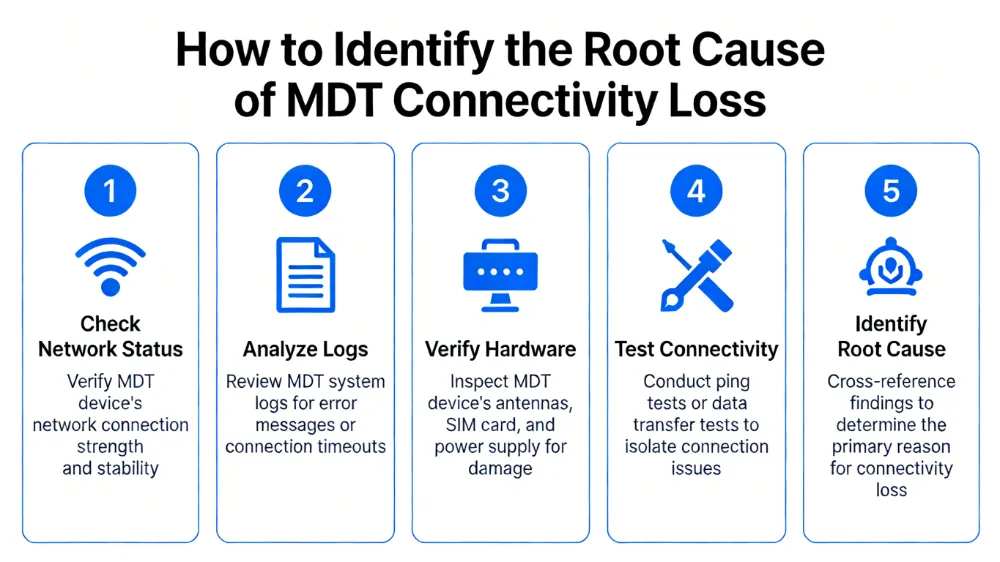
How to Identify the Root Cause of MDT Connectivity Loss?
Root cause identification requires isolating the failure layer by checking signal strength (RSRP), SIM status, and APN configuration before assuming hardware failure.
Initial Diagnostic Checklist
- Signal Verification: Check Signal-to-Noise Ratio (SNR). Values below 10dB indicate interference rather than outage.
- Network Type: Confirm if the device is stuck on 2G/3G fallback instead of 4G/5G due to tower congestion.
- IP Address Assignment: Verify if the MDT has received a valid private IP from the carrier gateway (e.g.,
10.x.x.xvs169.254.x.x). - Ping Test: Execute a ping to the central dispatch server. Latency > 500ms indicates packet loss despite “connected” status.
[Table: Connectivity Symptom vs. Likely Cause]
| Symptom | Likely Cause | Immediate Action |
|---|---|---|
| “No Service” Icon | SIM Failure or Antenna Disconnect | Reseat SIM or check antenna coax |
| Connected but No Data | APN Misconfiguration | Verify APN string matches carrier 2026 standards |
| Intermittent Dropout | Roaming Policy or Weak Signal | Check roaming flags and signal strength |
| Slow Data Transfer | Network Congestion or Throttling | Run speed test; check data cap limits |
How to Resolve Cellular Network Failures on MDTs?
Resolve cellular failures by validating eSIM profiles and updating Carrier Settings, as 2026 networks require specific 5G Standalone (SA) configurations.
Step-by-Step Cellular Troubleshooting
- Verify eSIM Status: Navigate to
Settings > Network > SIM Manager. Ensure the profile status is “Active” and not “Disabled” due to policy violation. - Update APN Settings: Access Point Names must match the carrier’s 2026 IoT specifications (e.g.,
iot.carrier.comvs legacyinternet). - Force Network Re-registration: Toggle Airplane Mode for 30 seconds to force a fresh handshake with the nearest tower.
- Check IMEI Blacklist: Verify the device IMEI is not flagged on the carrier network due to reported theft or non-payment.
- Antenna Inspection: Physical inspection of external cellular antennas for corrosion or loose SMA connectors (common in rugged environments).
[Box: Information Gain – 2026 Carrier Error Codes]
- Error 301: APN Authentication Failed (Check Username/Password in APN).
- Error 403: SIM Barred (Contact Carrier for Provisioning Reset).
- Error 503: Network Side Failure (Wait 15 mins or switch Roaming Partner).
- Error 606: 5G SA Not Supported (Downgrade to NSA/LTE temporarily).
How to Fix Wi-Fi Dropout Issues in Fleet Depots?
Fix Wi-Fi dropouts by configuring Fast Roaming (802.11r) and ensuring the MDT supports Wi-Fi 6E bands to avoid interference from legacy devices.
Wi-Fi Optimization Steps
- Band Steering: Ensure MDTs are forced to 5GHz or 6GHz bands to avoid congested 2.4GHz spectrum in warehouses.
- Roaming Threshold: Set roaming aggression to High so devices switch Access Points (APs) before signal drops below -75dBm.
- Authentication Protocol: Switch from WPA2-Personal to WPA3-Enterprise to resolve handshake timeouts during peak hours.
- DHCP Lease Time: Reduce lease time to 1 hour to prevent IP conflicts when vehicles move between subnet zones.
- Certificate Validation: Ensure root CA certificates are updated on the MDT to prevent authentication failures on secure networks.
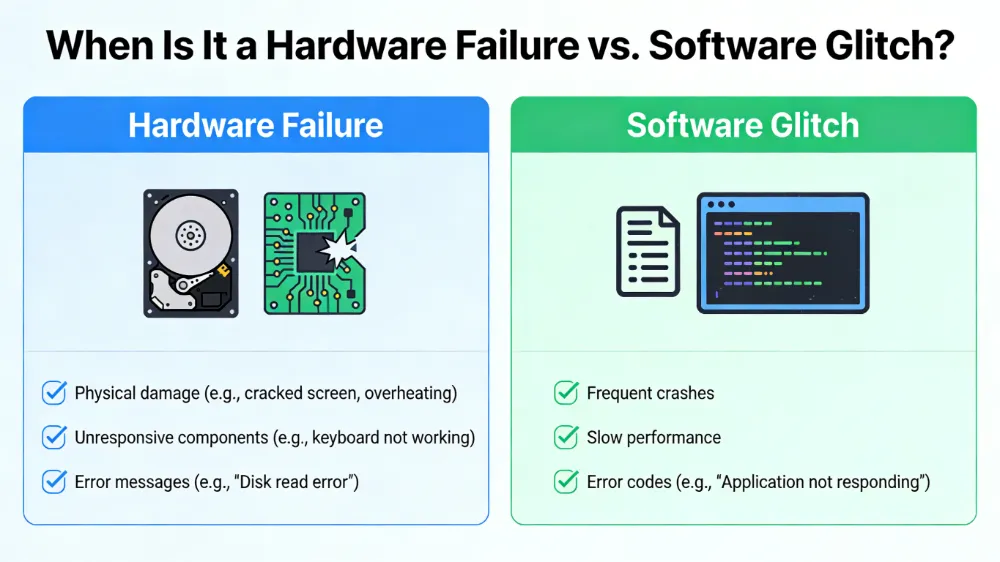
When Is It a Hardware Failure vs. Software Glitch?
It is a hardware failure if multiple SIM cards fail in the same device or if the IMEI is unreadable, whereas software glitches are isolated to specific apps or configurations.
Hardware vs. Software Decision Tree
- Swap Test: Insert a known working SIM into the MDT. If it fails, the modem hardware is likely defective.
- Factory Reset: Perform a network settings reset. If connectivity persists, it is likely firmware corruption.
- External Antenna Test: Connect a temporary external antenna. If signal improves significantly, the internal antenna is damaged.
- Boot Loop Check: If the device reboots when searching for signal, the power management unit (PMU) may be failing under load.
- Port Diagnostics: Use USB diagnostic tools to check modem recognition in Device Manager (Windows) or ADB (Android).
[Table: Hardware Failure Indicators]
| Component | Failure Sign | Replacement Priority |
|---|---|---|
| Cellular Modem | No IMEI Detected | Critical (Immediate) |
| Wi-Fi Module | Grayed Out Wi-Fi Toggle | High (Within 24hrs) |
| Antenna Connector | Physical Damage/Corrosion | Medium (Schedule Repair) |
| Battery/PMU | Device Shuts Down During Tx | Critical (Safety Risk) |
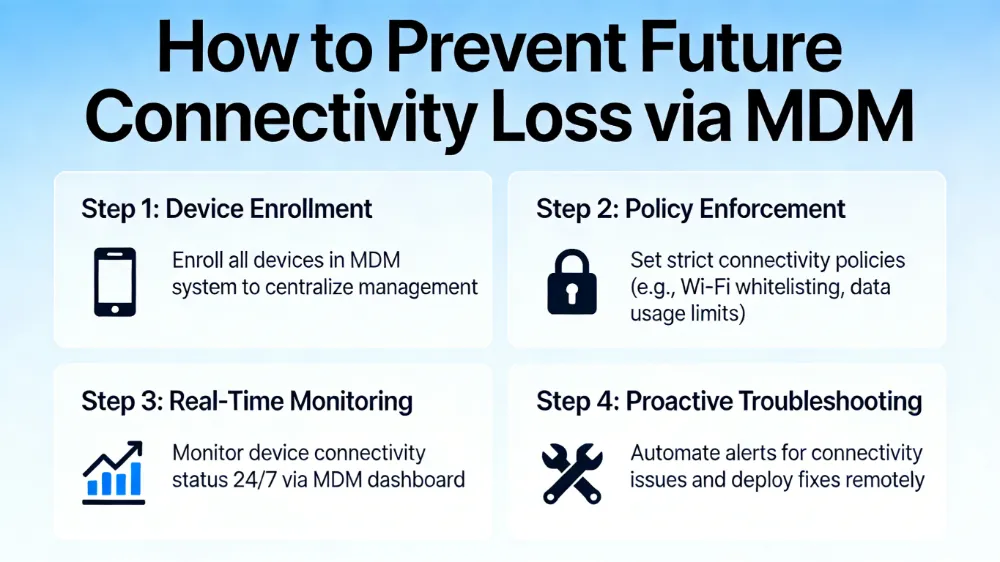
How to Prevent Future Connectivity Loss via MDM?
Prevent future loss by enforcing automated heartbeat monitoring via Mobile Device Management (MDM) policies that trigger alerts before total failure occurs.
Preventive MDM Configuration
- Connection Heartbeat: Configure MDM to ping the server every 5 minutes. Alert if 3 consecutive pings fail.
- Auto-Recovery Scripts: Deploy scripts that automatically restart the radio interface upon detecting 0 bytes transferred for 10 minutes.
- Firmware Compliance: Block devices from operating if cellular firmware is older than 3 months to ensure network compatibility.
- Data Usage Alerts: Set thresholds at 80% of data cap to prevent throttling-induced connectivity loss.
- Remote Wipe & Reprovision: Enable remote capability to wipe network profiles and reprovision eSIMs without physical access.
[Box: Information Gain – Downtime Cost Calculator]
Formula: Cost = (Vehicles Down × Hours Offline × Revenue Per Hour) + (Dispatch Labor × Overtime Rate)
Example: 5 Vehicles × 4 Hours × $150/hr = $3,000 Loss per incident.
Prevention ROI: Investing in proactive MDM monitoring reduces incidents by 60%, saving $1,800 per event.
FAQ: 10 Questions About MDT Connectivity Troubleshooting
Below are the most frequently asked questions by IT Managers regarding diagnostics, carrier issues, and hardware replacement.
- Why does my MDT show full signal but no data?
Usually an APN configuration error or data cap throttling by the carrier. - How often should MDT firmware be updated?
Quarterly updates are recommended to maintain network compatibility. - Can a damaged antenna cause data corruption?
Yes, poor signal quality increases packet loss and retransmissions. - What is the best tool for testing MDT signal?
Use built-in field test modes (e.g.,*#0011#for Android-based MDTs). - Does weather affect MDT connectivity?
Heavy rain or snow can attenuate high-frequency 5G signals slightly. - How do I check if my SIM is activated?
Check carrier portal or insert SIM into a known working device. - Is eSIM more reliable than physical SIM?
Yes, eSIMs are less prone to vibration-induced contact failure in vehicles. - What do I do if the IMEI is blocked?
Contact the carrier immediately with proof of ownership to unblock. - Can VPNs cause connectivity issues?
Yes, incorrect VPN profiles can block all traffic if the tunnel fails to establish. - Should I use a signal booster?
Only if verified by a site survey; improper boosters can interfere with tower signals.
Author: Marcus Thorne, Senior Fleet IoT Engineer (18+ Years in Telematics)
相关推荐内容
Latest Content
- Rugged Android Tablet for Fleet Management: 2026 Complete Guide (Latest Data & Cases)
- Boosting Efficiency and Reliability: How Rugged Tablets Revolutionize Modern Transportation Operations
- Optimizing Fleet Efficiency: The Essential Guide to Mobile Data Terminal Hardware
- MDT Tablets and Devices: The Backbone of 2026 Industrial Intelligence
- Best Android Rugged Tablets: 2026 Comprehensive Guide for Operations & Product Leaders
Hot product
- WMT6UQ: 6-Inch 4G Android 12 Wireless Carplay Navigator Motorcycle PND
- WT10RX: 10.1 inch rugged tablet,10.1″ sunlight-readable display,10.1" ip67 rugged tablet
- WT10MX: 10.1 inch rugged tablet 12,000 mAh,10.1″ IPS display Rugged IP65 design
- WT08Q9Y: 8 inch 10000mAh long battery rugged tablet,1000-nit rugged tablet,
- WT08M8Y: 8 inch Android 14,700-nits rugged tablet